
Parental Controls- Time setting is no longer available and how can i add on this features?

Answers
-
"Here is the current situation with F-Secure Total / Family Protection and the time-based parental controls you’re asking about:
1. The traditional time scheduling feature has been removed.
F-Secure has been phasing out its old Family Rules parental control module — the one that let you set daily time limits and bedtime schedules — across all platforms. According to F-Secure’s own change notes, the Family Rules feature is being replaced by a simplified Family Protection content-filtering module, and the older time scheduling/time limits control is no longer available in the latest app versions. kb.f-secure.com+12. What remains in F-Secure Total’s parental controls.
The current Family Protection feature still focuses on content filtering (blocking inappropriate content based on categories) and basic protection for kids’ devices. However, granular time-based restrictions (like daily screen time quotas, bedtime blocks, etc.) have been removed from the app itself. F-Secure Community3. Why the change matters.
Users in the F-Secure community confirm that the modern Total app does not include the old time-limit controls for kids like before. Instead, F-Secure refers people to use the device’s built-in system parental controls (e.g., iOS Screen Time, Android Family Link/Google Family Link, Windows Family Safety) for scheduling/time limits because these system tools are typically more robust and integrated into the OS. F-Secure Community4. What you can do if you need time scheduling.
Because F-Secure Total no longer supports time-of-use rules itself, you have two practical options:- These system tools allow detailed time scheduling per device and are independent of F-Secure. They also often show daily usage reports.
- Use a dedicated parental-control app:
If the built-in OS tools don’t meet your needs, third-party parental-control apps (e.g., Qustodio, Net Nanny, Bark, ScreenTime, etc.) provide advanced scheduling and monitoring for multiple platforms.
5. Summary for your specific need (“time settings for kids control”).
Since F-Secure Total no longer offers time-based controls:- You cannot add that feature within F-Secure Total itself.
- Instead, use the device’s native parental control features (e.g., iOS Screen Time, Google Family Link, Microsoft Family Safety) or a third-party parental control solution to set time limits and schedules."
- btw:
- which devices your kids use (iPhone, Android phone/tablet, Windows PC, etc.) ?
-
"Below is the recommended, native method to add parental controls on a Windows 11 PC, followed by practical notes and alternatives.
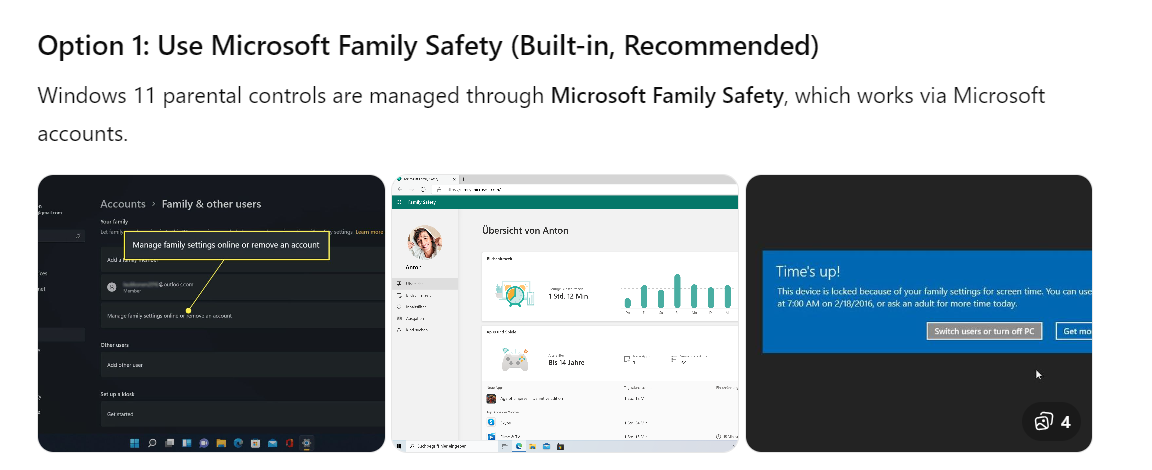
Prerequisites
- Parent and child must each have a Microsoft account
- The child must sign in to Windows with their own account (not a shared/local account)
Step-by-Step Setup
1. Create or use a child account
- Open Settings
- Go to Accounts → Family
- Select Add someone
- Choose Add a child
- Sign in with the child’s Microsoft account
- Or create one during this step
Windows links the account automatically to Family Safety.
2. Access the Family Safety dashboard
Open a browser and go to:
https://family.microsoft.com
Sign in with the parent account.
3. Configure parental controls
You can now manage the child’s PC remotely.
Key controls available:
- Screen time
- Daily limits
- Different limits per device
- Specific hours when the PC can be used
- App & game restrictions
- Age-based filtering
- Block specific apps (including desktop programs)
- Require approval before installing apps
- Web & search filtering
- Block adult content
- Allow-only approved websites
- SafeSearch enforcement (Edge, Bing)
- Activity reporting
- Weekly activity summaries
- App usage
- Screen time statistics
Changes take effect automatically when the child signs in.
Important Limitations (Be Aware)
- Web filtering works best with Microsoft Edge
- Chrome/Firefox require Microsoft Family Safety browser extension
- Tech-savvy users can bypass controls if:
- They use admin credentials
- They boot from external media
- This is not enterprise-grade device lockdown
Option 2: Local Account (Not Recommended)
If the child uses a local Windows account, parental controls are extremely limited (no screen time, no web filtering). Microsoft strongly pushes Family Safety instead.
Option 3: Third-Party Parental Control Software
Use this only if you need stronger enforcement or non-Microsoft browsers.
Common reasons to go third-party:
- Multiple operating systems (Windows + macOS + mobile)
- Strong anti-bypass protection
- Detailed app blocking and logging
Examples include:
- Qustodio
- Norton Family
- Net Nanny
These operate independently of Microsoft accounts.
Best-Practice Recommendations
- Use separate Windows accounts per child
- Ensure the parent account is the only administrator
- Enable BIOS/UEFI password to prevent boot bypass
- Combine PC controls with router-level parental controls if needed "
