
When I try to install .NET Desktop Runtime for x64, the prompt says Out of storage space. I can't fi

When I try to install .NET Desktop Runtime for x64, the prompt says Out of storage space.
But I don't know how to add storage apace or delete some files while all files seem important.
How to enable this installation to be made to Disk D, instead of Disk C, that is done automatically?
Answers
-
Hello,
When I try to install .NET Desktop Runtime for x64, the prompt says Out of storage space.
But I don't know how to add storage apace or delete some files while all files seem important.
How to enable this installation to be made to Disk D, instead of Disk C, that is done automatically?
I think F-Secure app installation is tied to the system drive, so you can't (or cannot easily) switch it and install it on another drive.
However, since you don't directly mention a relation to the F-Secure installation, are you trying to install .NET Desktop Runtime manually? Or is it part of the F-Secure installation process?
When I enabled installation to Disk D, instead of Disk C, still .NET Desktop Runtime demands to run installer from disk C.
What you meant was that you managed to install it (.NET Desktop Runtime), but then additional demands arose? For example, by running F-Secure app installer? Or is it still .NET Desktop Runtime complaining about running from system drive(?) while you enabled installation to another drive?
In general, it is expected to be in system drive (system-wide location). However, Microsoft has this 'workaround' for special needs - dotnet-install scripts reference. Which you probably tried to use (if not - it is best to find/learn proper steps before any attempt to perform something).
And I can't free space there as I can't open data files.
Could you provide more information about your system? Windows version and what's current size of free space on your system drive?
I think, Windows has some built-in tools that help you clean/remove some old or unnecessary files per demand. I am not sure if 'way' to use is universal for any Windows version (but you always can look up at Settings and related parts like Storage of System section) or Disk Cleanup built-in tool (in system startup menu or by searching it). The name can be localized if installation is non-English one.
It is better to carefully read/see what actions will be taken before performing them.
Thanks!
-
Thanks, Ukko.
My answer is:
it is still .NET Desktop Runtime complaining about running from drive C, while I tried installation of
.NET Desktop Runtime
to another drive - to drive D.
My device data:
Device Name DESKTOP-OB7OCKL
Processor Intel(R) Core(TM) i7-3770 CPU @ 3 .40GHz 3.40 GHz
Installed RAM 12.0 GB
Storage 56 GB SSD KINGSTON SV300S37A60G, 466 GB SAMSUNG HD501LJ
Graphics Card NVIDIA GeForce GTX 670 (2 GB)
Device ID DD30C2B5-5C4E-4DFC-9D4D-E2EFE639C7E8
Product ID 00325-80000-00000-AAOEM
System Type 64-bit operating system, x64-based processorLocal disk C:
771 MB free of 55.2 GB. When I try to install
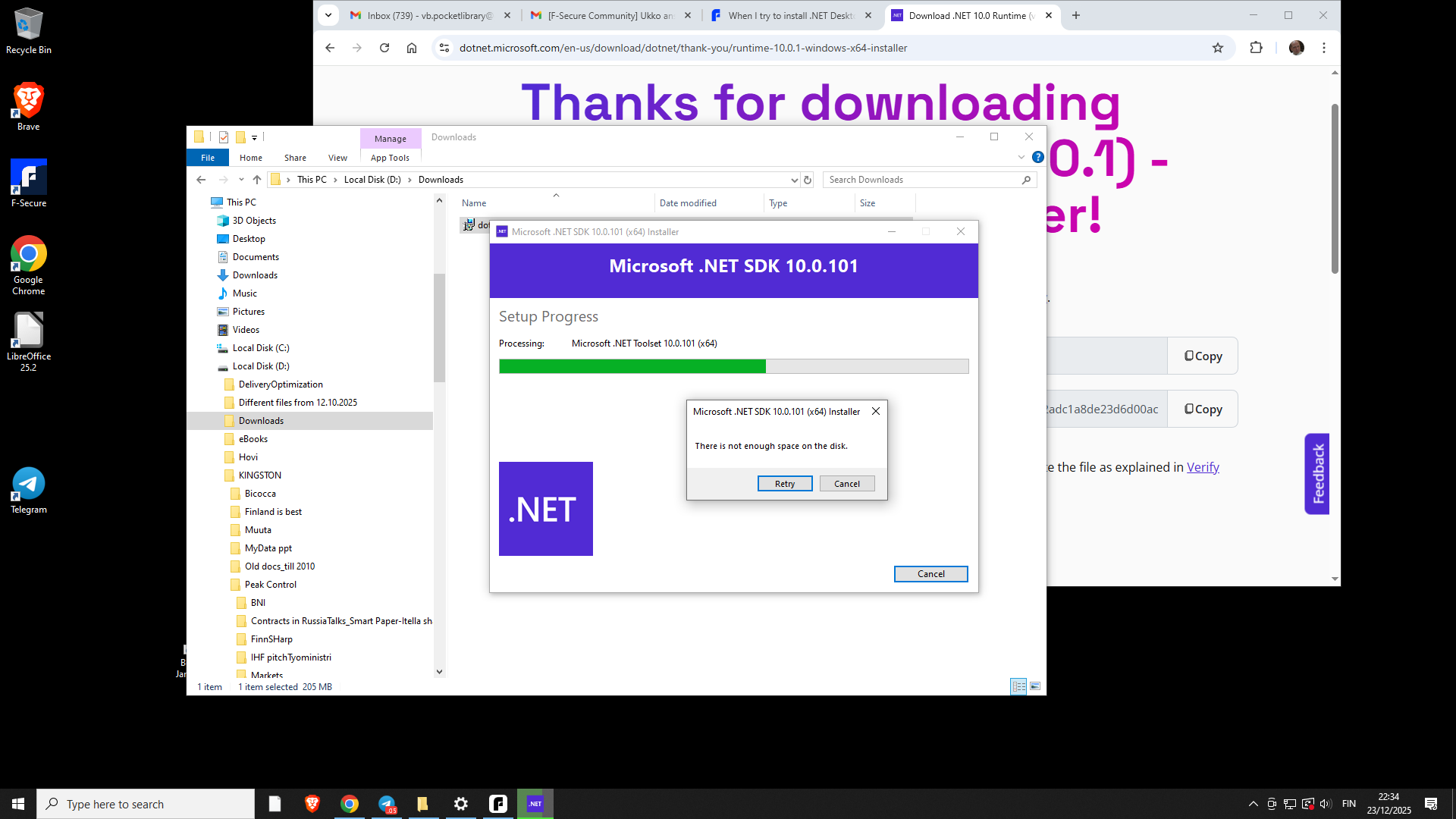
Could you help please?
-
Hello,
Thanks for your feedback. So, I will try to help. And I will try to discuss each point individually and then to suggest something more universal.
One thing to mention is I am also only an F-Secure user. In general, if this difficulty with .NET Desktop Runtime is related to the installation of F-Secure solution, you can also try contacting the official support here https://www.f-secure.com/en/support (in the middle of the page or just by initiating web-chat through its 'right bottom' placement; where you should ask for connecting with Support Agent and then to explain your situation): they can generally offer remote assistance, where they can provide more technical assistance and walk you through each step. I provided URL to generic website (English-based), but you better to choose your locale for better results in case of local support options.
Could you help please?
FIRST POINT: to install .NET Desktop Runtime to another drive (not to the system drive).
Microsoft's page https://learn.microsoft.com/en-us/dotnet/core/tools/dotnet-install-script describes some information about how to do it.
Well, I tried to put together a guide now, but… then I felt these steps will be a little more difficult than you might like. So, I do not recommend trying this way unless you are confident about entire routine.
Because it's still better to figure out the space trouble than to install the .NET Desktop Runtime in non-default place, which is usually not necessary.
SECOND POINT: your screenshot shows Microsoft .NET SDK 10.0.101 installation process.
I am a little confused by this. It's likely that the "entire package" isn't required if you're installing F-Secure solutions (and maybe 10.0 is higher version as well). In fact, F-Secure usually installs everything it needs (it's just that currently there is complain about free space);
You tried to do it manually - which is fine in case if there will be any difficulties with automatic installation by F-Secure software). So, currently, requirement (or so) is .NET Desktop runtime 8.0*. Possible to download it from there: https://dotnet.microsoft.com/en-us/download/dotnet/8.0, where you need to find these lines and download installer for your system:
.NET Desktop Runtime 8.0.22
The .NET Desktop Runtime enables you to run existing Windows desktop applications.
This release includes the .NET Runtime; you don't need to install it separately.
OR here is current direct installer's URL for x64 platform: https://dotnet.microsoft.com/en-us/download/dotnet/thank-you/runtime-desktop-8.0.22-windows-x64-installer
then you need find the file in your Downloads folder, right-click it and select Run as administrator.
However, let's try to fix situation by checking free space part. And letting F-Secure installer automatically perform all necessary actions then.
THIRD POINT: not enough space on the system drive.
So, C:\ drive is 56 GB SSD KINGSTON SV300S37A60G,
D:\drive is 466 GB SAMSUNG HD501LJ
only 771MB is available on system drive (out of 56GB).
// Also, it looks like you have some pending Windows updates on your system. Could you check them and/or reboot your system? This might free up some space.
It would be nice to understand what takes up the most space. Can you open Windows Settings, then "System" part, then "Storage" part? There should be list of categories and a bit of statistics on usage. For example, to check what's inside Temporary files category and what are options there; And, maybe, there are some old applications took space, but you do not use them anymore.
Another way is to use Disk Cleanup tool. Try type it in Windows search, then launch it; choose C:\ drive. Where you can, then, click "Clean up system files" and see results of what's possible to remove/delete. Check if there is something which you may think safe to choose and delete. Especially if something like Windows Update Cleanup is available.
If nothing hints you with these places and you can't contacting F-Secure official Support channel for a bit of more 'direct and technical help', then we can try to figure out how to create easy steps to install .NET Desktop Runtime on D:\ drive.
The trouble itself (as I think) 56GB is really close to limits of Windows 10/11 itself in a long run. But, usually, there are still extra by some other applications and even F-Secure app is mostly installed only on the system drive.
-
"Below is a concise, practical answer tailored to the situation you described, without forum back-and-forth.
Short answer
You cannot install .NET Desktop Runtime to drive D: in a supported way.
.NET Desktop Runtime (and SDK) is a system-wide component and must be installed on the system drive (C:). This is by Microsoft design. Changing the target drive in the installer UI or via Windows “App install location” does not apply to .NET.Your problem is therefore not a .NET installer bug — it is critically low free space on C: (771 MB), which is far below what Windows, .NET, or F-Secure require.
Why this fails (important context)
- Windows itself requires several GB of working free space on C: for:
- Windows Update
- MSI installers
- .NET Runtime installation
- Security software (F-Secure)
- With <1 GB free, installers will fail regardless of the target drive.
- Your SSD (60 GB class) is undersized for modern Windows after years of updates.
What will NOT work
- Installing .NET Desktop Runtime to D:
- Portable / redirected .NET installs for F-Secure
- Registry hacks or environment variables
- Re-running installer as admin without freeing space
These will only waste time.
What WILL work (in order of effectiveness)
1. Use Windows Disk Cleanup (system files) — do this first
- Press Win + R
- cleanmgr
- Select C:
- Click Clean up system files
- Check all of the following if present:
- Windows Update Cleanup
- Delivery Optimization Files
- Temporary Windows installation files
- Temporary files
- Previous Windows installations (if shown)
- Confirm cleanup
This alone often frees 5–15 GB.
2. Remove hibernation file (instant ~6–12 GB)
If you do not use hibernation:
- Open Command Prompt (Administrator)
- powercfg -h off
This deletes
hiberfil.sysimmediately.3. Reduce or move page file (advanced but effective)
- Press Win + R →
sysdm.cpl - Advanced tab → Performance → Settings
- Advanced → Virtual memory → Change
- Uncheck “Automatically manage”
- Either:
- Reduce C: page file, or
- Move page file to D:
- Reboot
4. Move user folders to D: (Documents, Downloads, Desktop)
For each folder:
- Right-click folder → Properties
- Location tab → Move
- Select a folder on D:
This is safe and effective.
5. Uninstall unused applications (last resort)
Settings → Apps → Installed apps
Sort by size → remove what you truly do not need.After freeing space
Once you have at least 6–8 GB free on C::
- Reboot
- Install .NET Desktop Runtime 8.x (x64)
(not SDK, not preview) - Then run the F-Secure installer
Do not preinstall .NET 10 SDK — it is unnecessary.
Strategic recommendation (important)
Your system drive is 55 GB total, which is no longer realistic for Windows 10/11 + updates + security software.
Best long-term fix:
- Replace the Kingston 60 GB SSD with a 250–500 GB SSD
- Clone the disk or reinstall Windows cleanly
This will permanently eliminate these issues.
Bottom line
- The installer is correct: .NET must be on C:
- The failure is caused by severely insufficient free space
- Free space first → installation will succeed
- Windows itself requires several GB of working free space on C: for:
-
Thank you both, Ukko and JOnes.
My problem was solved, but only when a F-Secure service took over my computer remotely, as all his advises via F-Secure chatbox couldn't help. So, he had to uninstall and reinstall several versions of Runtime apps/programs inside my computer.
Then he installed the needed version of the .NET... and it worked out.
And yes - thanks, I'd deleted previously some programs, so I freed some space at my disk C:
Good luck!
-
Fine,sometimes offical customer service is needed in order to solve issues.
In the future, of course, we´ll hope that the software will already notify you of the existence of the necessary space more specifically and compatible libraries needed during the installation phase, preventing this problem from occurring.